Part 1 of 3
- Open your phone’s Wi-Fi settings
- Select HP-PS200W-XXXX
-
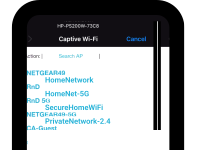
After you select the device, a new page will
open with a list of your available Wi-Fi networks.
Part 2 of 3
-
Select the Wi-Fi Network that your scanner
should use (the same network your phone will
use when using the app)
- Make sure it is a 2.4 GHz network
- 5 GHz networks are not supported
- Enter the Wi-Fi password and tap connect
Part 3 of 3
-
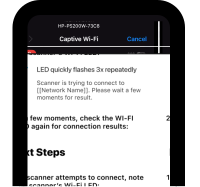
Then a “Next Steps” page will open, guiding you
to the device’s Wi-Fi LED, for connection status.
-
Once the LED is no longer flashing, return to the HP WorkScan App